
One idea, many tiny tiles
Make a Photo From Emoji Generator Mosaic With heydots.app
Rebuild a portrait with emoji tiles
History
Your questions, answered
What is Photo From Emoji Generator?
It creates a mosaic image whose many small emoji tiles form the broad colors and silhouette of a photograph. This workflow starts from a photo; it does not recover a real person's face from an emoji character.
How do I start?
Choose Image to Image, upload a clear photo and describe the mosaic's tile size, palette and subject emphasis. Read the quote, generate and compare the full portrait with a close view of the tile texture in History.
Can I try it for free?
Check your current account credits and the selected model’s access conditions. When the available balance covers the quoted job, you can generate without buying more credits.
What do I upload?
Use one distinct subject with a clear face or outline. Crop away most surrounding clutter. A head-and-shoulders portrait with strong separation between hair, skin, clothing and background gives the mosaic a simple structure.
How much does it cost?
Read the live credit quote for the selected model and settings before submitting your emoji mosaic. Preparing inputs or editing a description does not start a generation.
When is the result ready?
Follow the submitted job’s estimate and progress. The model, settings and queue affect waiting; History keeps the completed image available for review and download.
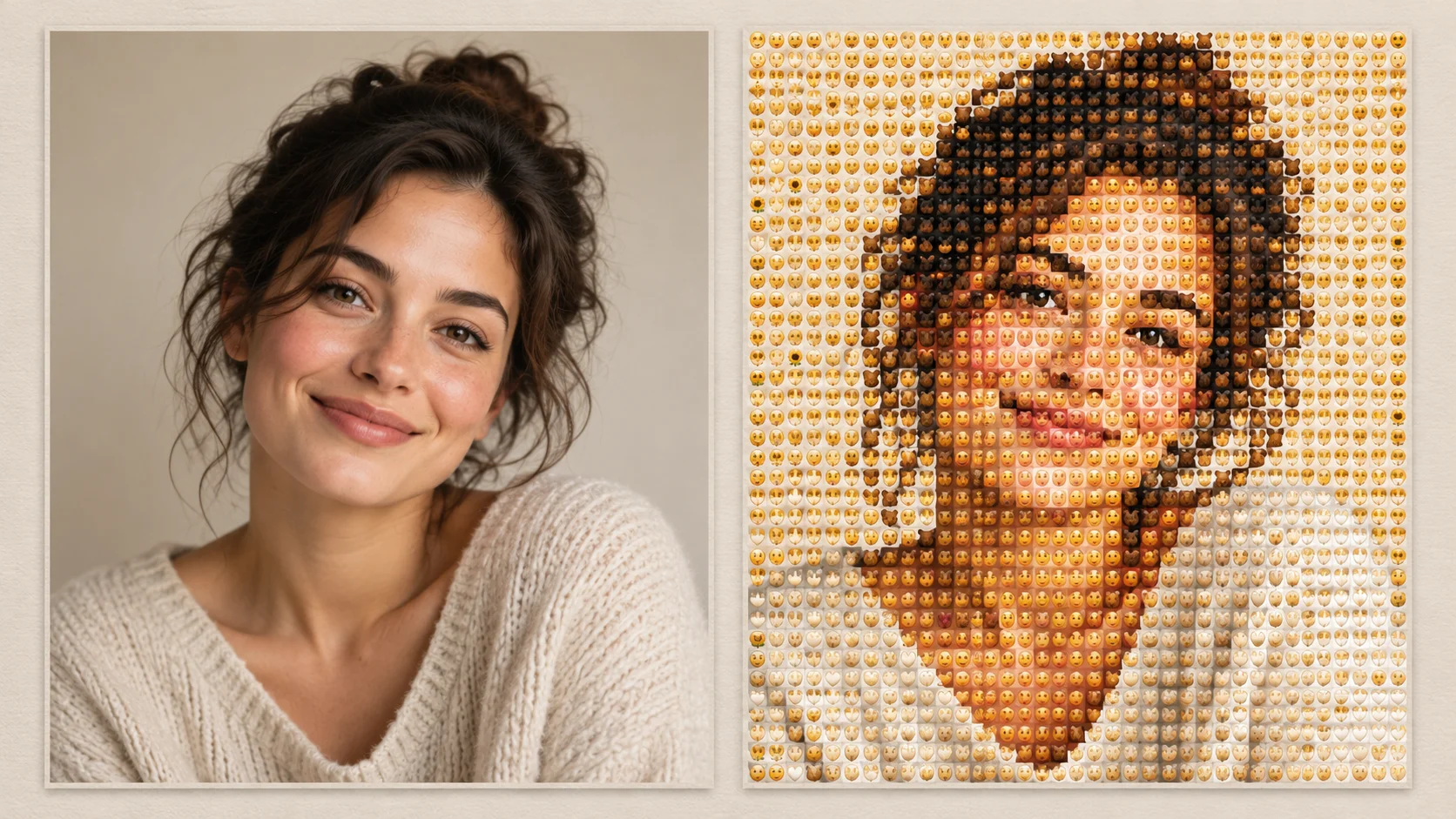
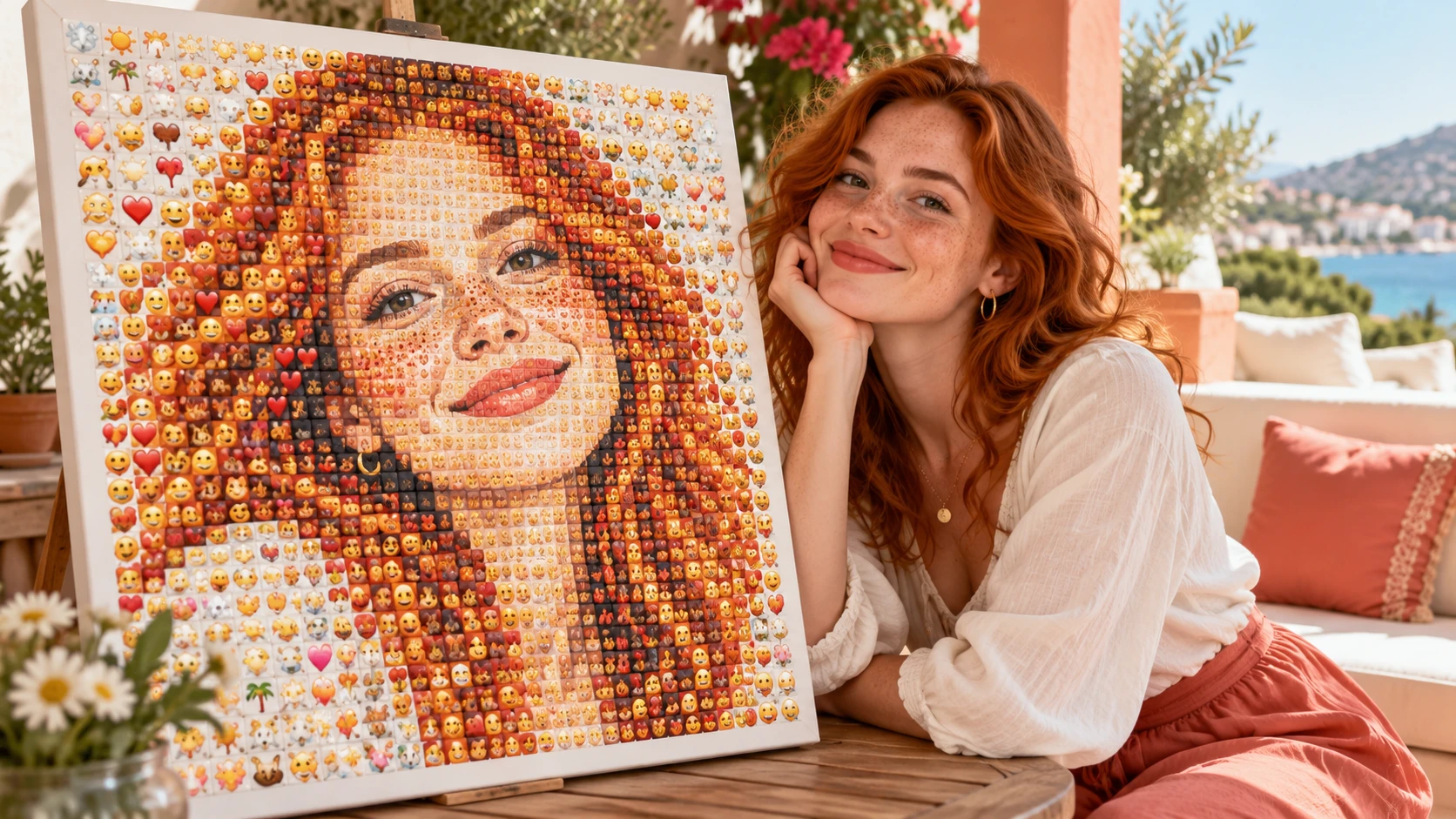
Step back to see the portrait, then move closer to see the tiles. The Photo From Emoji Generator on heydots.app rebuilds a photo as a colorful emoji mosaic. The large shape comes from the face, hair and clothing in your source; the small shapes supply the playful texture. Prepare one uncluttered portrait and ask for a tile arrangement that remains readable at the size you plan to share.
Generate emoji mosaicHow the emoji mosaic comes together
Upload the photo
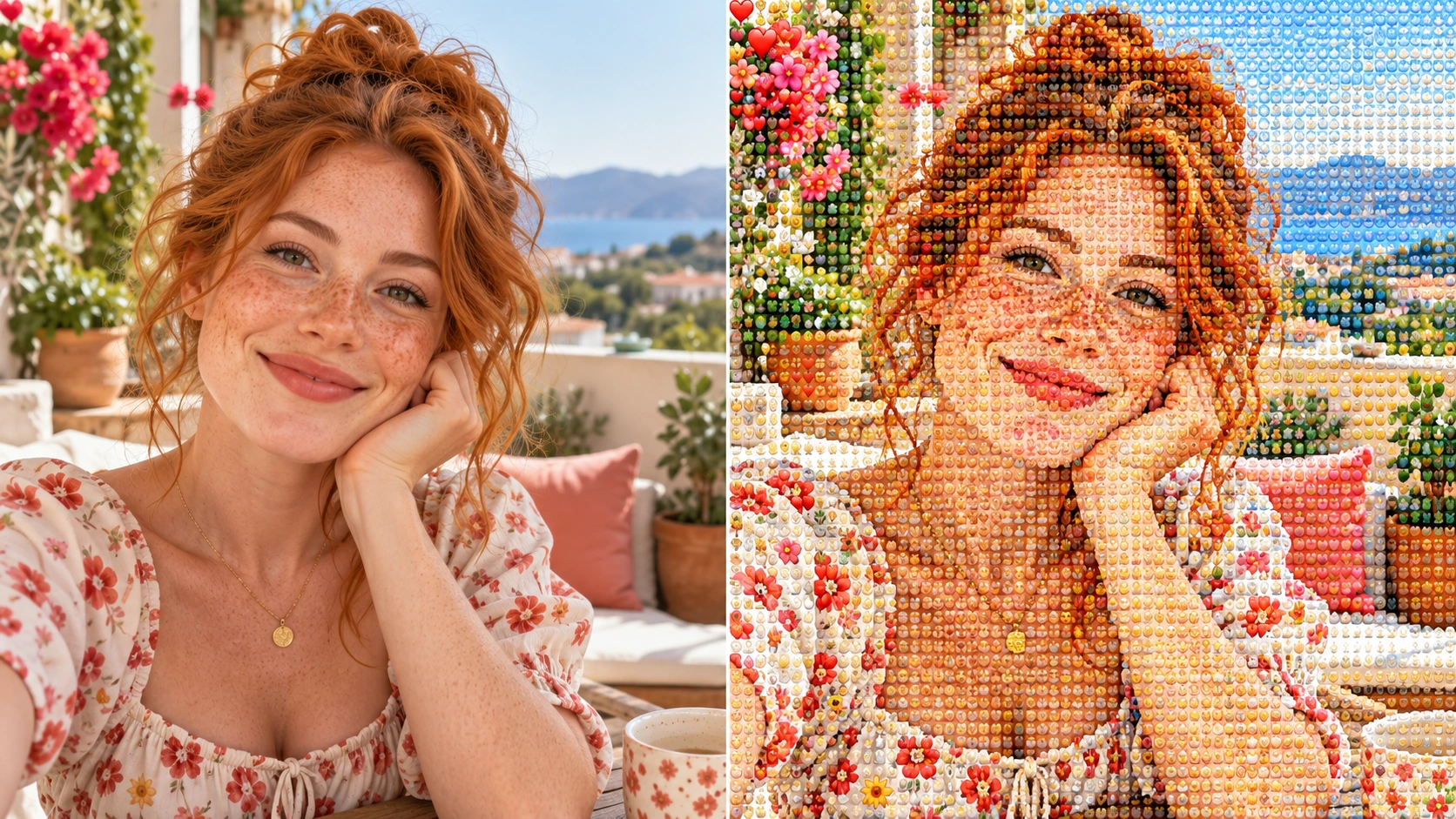
Choose a photograph with a clear subject and readable shape. A head-and-shoulders portrait, a pet, or a bold object all give the tiles something to hold. Crop out clutter before uploading so the emoji grid has a strong silhouette to follow. Bright, simple images tend to survive the tile reduction better than busy scenes.
Set the direction
Write a prompt that names the mood, color feel, and subject emphasis you want. Use the model controls to guide how the generator treats the image. You are directing a mosaic, so describe what should stay recognizable and what can dissolve into playful tile texture. Keep the idea to one memorable concept.
Quote, generate, review
The live credit quote shows the cost before you commit. Sign in to your account, start the generation job, and let it run. When it finishes, open History to compare versions, revisit earlier attempts, and pick the frame that reads best as a social post. Tile precision and detail vary between runs.
What the emoji mosaic actually does
Photo-to-tile reconstruction
Your uploaded photograph is broken into many small emoji tiles. Those tiles cluster to rebuild broad colors, the facial silhouette, and the main subject shape. Fine detail softens as the grid takes over, so the output reads as a mosaic first and a portrait second. That tension is the point of the concept.
Prompt and model direction
An editable prompt lets you steer tone and emphasis, while model controls shape how the generator interprets your direction. You are not locked into one look. Describe a warm palette, a cooler mood, or a tighter focus on the face, then adjust controls and run again to see how the tiles respond.
Live quote and History
A displayed credit quote appears before generation, so you know the cost up front. Every job lands in History, where you can review past mosaics, compare directions, and return to a version you liked. No hidden allowance is implied. The quote and your account keep the process transparent.
One idea, several ways to post it
A profile refresh
Make a mosaic from a clear head-and-shoulders photograph, then test the square or circular crop you actually use. Keep enough contrast around the face that the person remains readable when the post becomes a small profile image.
A pet portrait post
Use a single pet against a simple background and keep its ears in the crop. Choose tile colors that support the coat and eye area. Compare the full silhouette before focusing on tiny decorative symbols.
A launch teaser
Choose one recognizable product or object and let its outline carry the mosaic. Keep the background quiet, then arrange your launch message separately so lettering does not compete with the tile texture.
Before you generate

- Crop tightly around one subject so the emoji tiles have a clear silhouette to reconstruct.
- Describe the palette and mood in your prompt rather than expecting exact pixel detail from tiny tiles.
- Check the displayed credit quote before each job, then compare runs in History instead of guessing.
Build the portrait at two viewing distances
Before uploading, shrink the source photo on your screen. Can you still identify the head angle and the main colors without examining the eyes closely? That is a useful starting test for a mosaic. Tiny tiles soften fine details, so the picture needs a clear outline before the texture is added. A red-haired subject against a quiet pale wall has a different color structure from a dark pet against foliage. Describe the important contrast in the prompt instead of demanding every hair or whisker. Leave enough room around the head that a social crop does not remove the silhouette that makes the mosaic readable.
Review the generated image at both distances. At normal posting size, look for a face and shoulders rather than a scattered field of symbols. Up close, look for varied tiles that contribute to the light and dark areas of the picture. If the tiles are so large that the expression disappears, ask for a finer mosaic while keeping the same source and color direction. If the output looks like a plain photograph with a few emoji around the border, specify that the tiles should form the subject itself. Choose the version that works in the intended post, then use a close detail crop as a separate supporting image if you want to show how it is built.
Emoji mosaic questions
What does the Photo From Emoji Generator make?
It transforms an uploaded photograph into an emoji mosaic. Many tiny emoji tiles reconstruct the broad colors, facial silhouette, and subject shape. The output is a new image built from emoji, not a real face extracted from an emoji character.
Which photos work best as input?
Photos with one clear subject and a readable silhouette work best. Tight portraits, pets, and bold objects give the tile grid a strong shape. Busy backgrounds and tiny details tend to blur once the emoji tiles take over, so crop before uploading.
How much can I control the direction?
You can edit the prompt and adjust the available model controls. Describe the mood, palette, and subject emphasis you want. Tile precision and detail vary between runs, so treat each generation as a direction to review rather than an exact specification.
Will the mosaic keep every facial detail?
No. Emoji tiles are large relative to fine features, so small details soften. The output preserves broad color, silhouette, and overall likeness while the grid adds texture. Expect a stylized mosaic, not a sharp photographic copy of the original.
How does the credit quote work?
A live credit quote is displayed before you generate, and you need an account to run jobs. Check the quote, then confirm the generation if the cost works for you.
Make your first emoji mosaic
Upload one clear photo, describe the mood you want, check the quote, and generate your emoji mosaic in heydots.app.
Generate emoji mosaicContinue with a related creative guide

heydots.app · Updated
See update history
- — Added editable example prompts and separate drafts for text and reference modes, with an action to restore the example.
- — Page content published. Updated page copy and content. Updated page images or videos. Updated page generator or navigation settings.