Planning the output
Photo to Animal: a careful preparation and comparison guide
Explore an animal-inspired portrait
History
Your questions, answered
What is Photo to Animal?
It creates an animal-inspired image from a photo and a written species direction. You can explore a natural animal portrait or a more human-shaped character; the prompt should make that choice clear before the job starts.
How do I start?
Choose Image to Image, upload one portrait and name one species. Describe the desired head angle, expression and type of body. Review the quote and generate, then compare the anatomy and pose in History.
Can I try it for free?
Check your current account credits and the selected model’s access conditions. When the available balance covers the quoted job, you can generate without buying more credits.
What do I upload?
Use a sharp photo of one adult with visible eyes and a readable head angle. Keep enough shoulder line to explain the pose. An evenly lit face and a quiet setting make the expression easier to carry into a new character.
How much does it cost?
Read the live credit quote for the selected model and settings before submitting your animal-inspired portrait. Preparing inputs or editing a description does not start a generation.
When is the result ready?
Follow the submitted job’s estimate and progress. The model, settings and queue affect waiting; History keeps the completed image available for review and download.
Choose the expression first and the animal second. Photo to Animal on heydots.app uses a clear portrait and a species description to explore an animal-inspired character. A calm fox study can echo a person's head tilt or gaze without copying every human feature. Decide whether you want an animal head-and-shoulders portrait or a clothed character before generating, then compare the interpretation against that intention.
Create a photo to animal portraitPrepare, direct, then compare
Choose and prepare one photo
Pick a single subject with a readable pose, expression, or silhouette. Avoid crowded scenes, heavy motion blur, and faces turned fully away. Crop distractions, check the image is sharp enough to read, and note which cues matter most to you, such as head tilt or shoulder line. Upload that photo as the reference.
Write the editable prompt
In the prompt field, name the animal species and describe the traits you want carried over. Keep the wording specific about pose, framing, and expression. Adjust the available model controls to match the style and detail level you have in mind. Read the prompt back before starting, since small edits can change the result.
Review the quote and history
Check the live credit quote shown before you confirm. Sign in with your account, then start the generation job. When it finishes, open History to compare outputs side by side. Judge each result against the cues you chose in step one, and change one variable at a time when you try again.
What the output can and cannot do
Editable species direction
The prompt is fully editable, so you decide which animal inspires the portrait. You can revise species, styling words, and supporting detail between attempts. That control matters because different species suggest different textures and proportions, and the same photo can read quite differently depending on the wording you choose.
Preserved visual cues
The aim is a recognizable pose, expression, or other visual cues from your original photo where possible. Results vary, and some cues survive better than others depending on the input and prompt. Treat each output as an interpretation to review, not a guaranteed likeness of every feature you noticed.
Jobs and history for comparison
Each generation job is recorded, and History lets you return to earlier attempts. That makes controlled comparison practical: change the species or one prompt detail, generate again, then compare the two results directly. You can keep the version that best matches your intent instead of relying on memory.
Where this approach fits
A character study series
Start from one consistent portrait and try several species prompts, keeping the pose and framing fixed. Comparing versions in History shows which animal direction suits the subject's expression and silhouette best for a character line-up.
A gift card concept
Use a clear photo of a friend or family member and describe an animal that fits a shared joke or interest. Keep the prompt playful but specific about the pose so the card still reads as a portrait rather than a generic animal picture.
A storyboard character study
Sketch a scene with real subjects, then generate animal-inspired versions to suggest tone and blocking. The editable prompt lets you test species choices before committing to written character notes or final artwork for the sequence.
Preparation and review notes
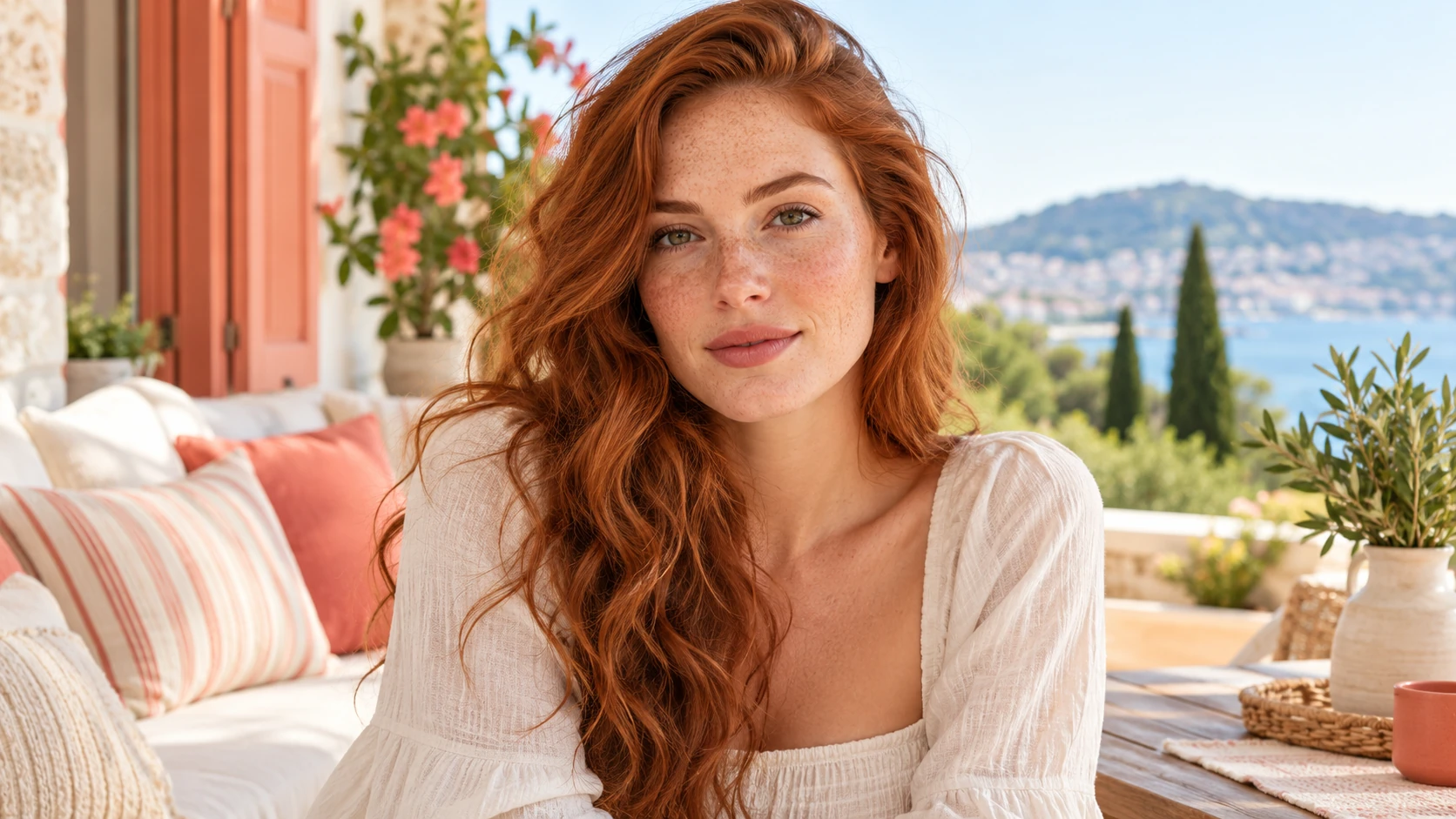
- Use one subject per photo; a second person or busy background gives the model conflicting cues to reconcile.
- Write the prompt so it names the species first, then describes pose and framing in plain language.
- Change only one prompt or model setting between jobs so History comparisons stay meaningful.
Choose between a species portrait and a dressed character
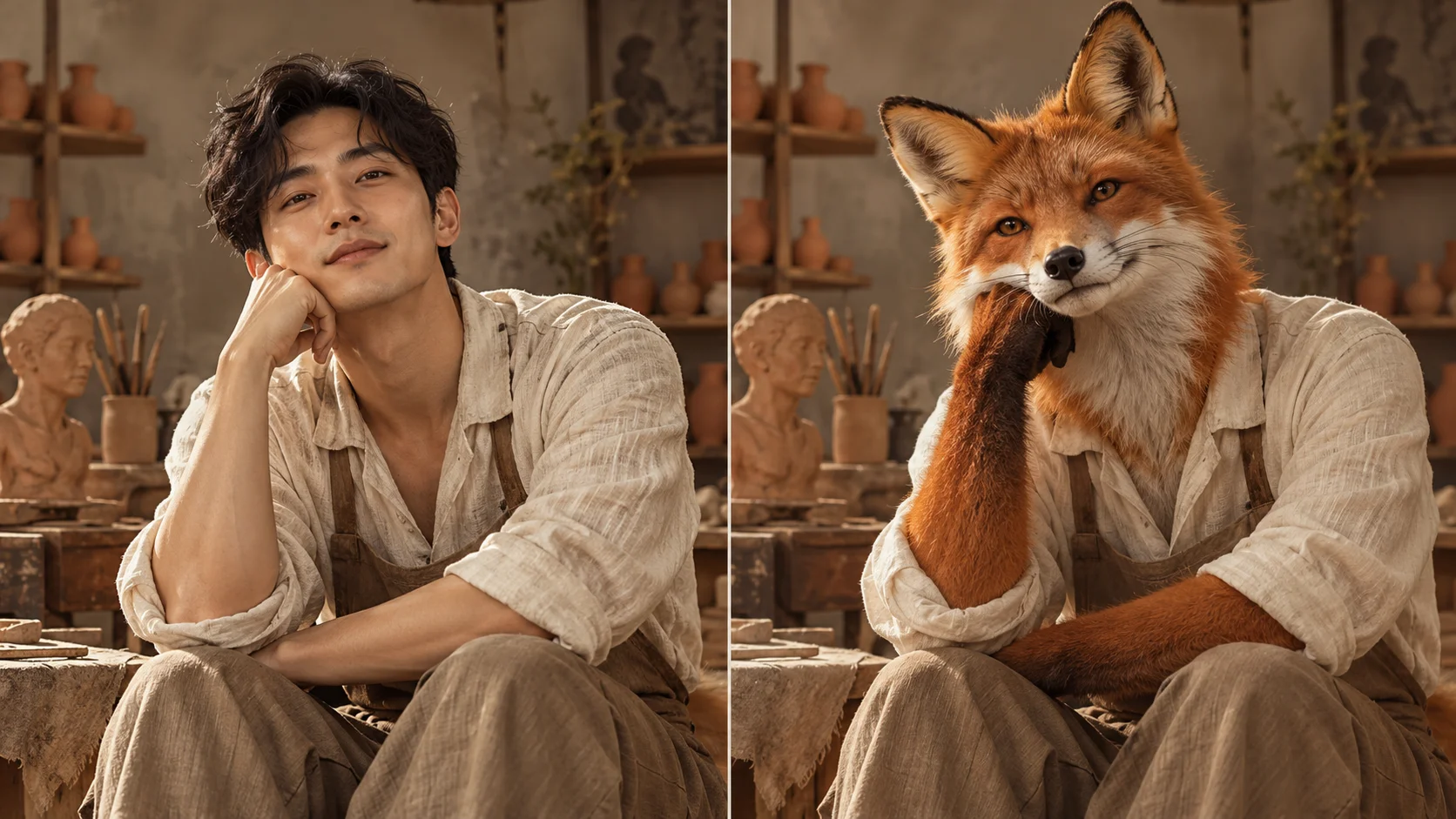
These are two different visual briefs. A natural fox head-and-shoulders portrait uses an animal's muzzle, ears and fur proportions. It can echo the source's gaze without keeping the person's blouse or human shoulders. A dressed fox character may retain a human-shaped pose and clothing, but needs clear instructions about the body and hands. Decide which picture you want before listing textures or background details. Start with a single species and one clear expression. Adding a fox, an owl and a tiger to the same first request makes it harder to decide whether the result follows any of them well.
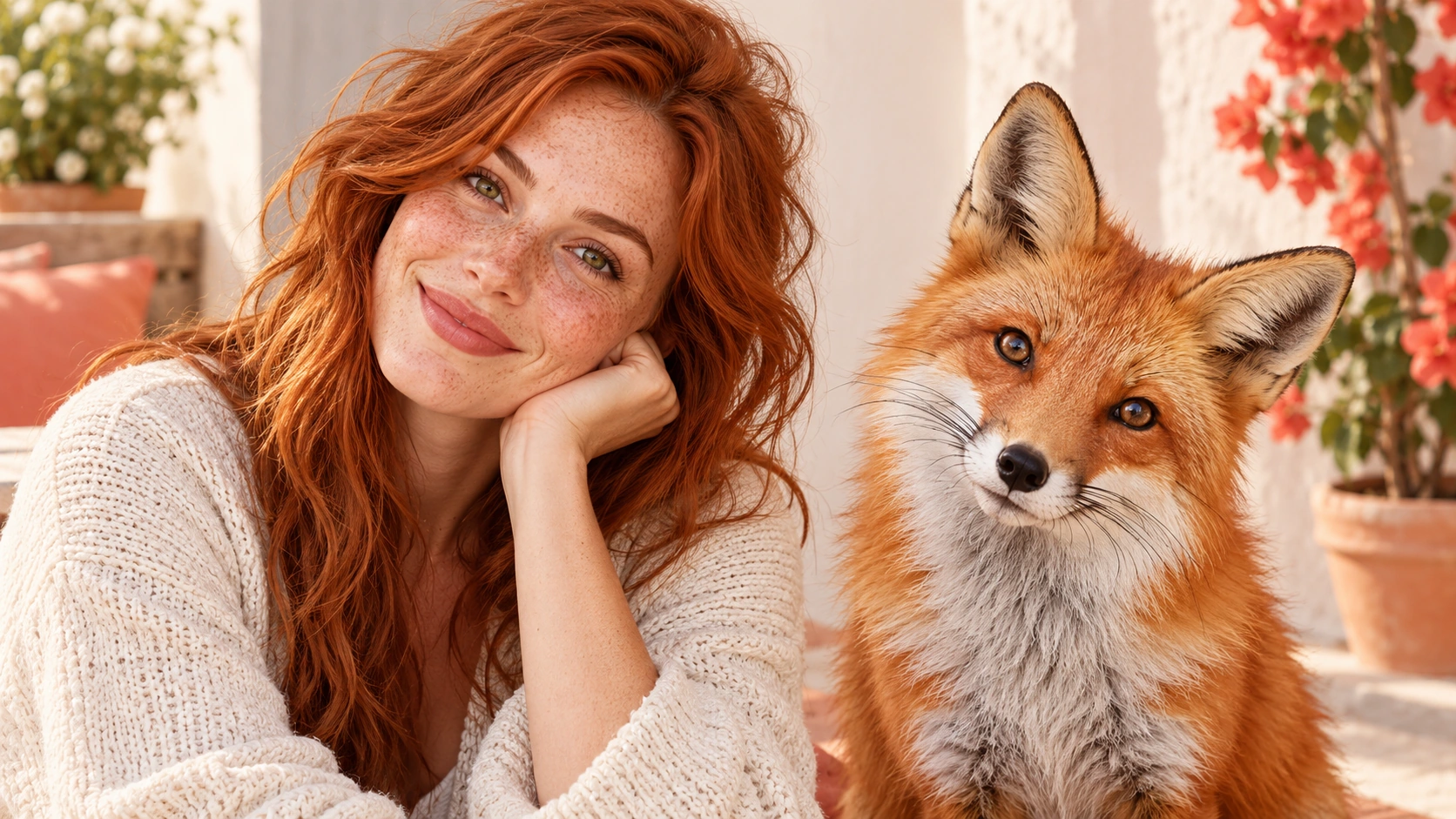
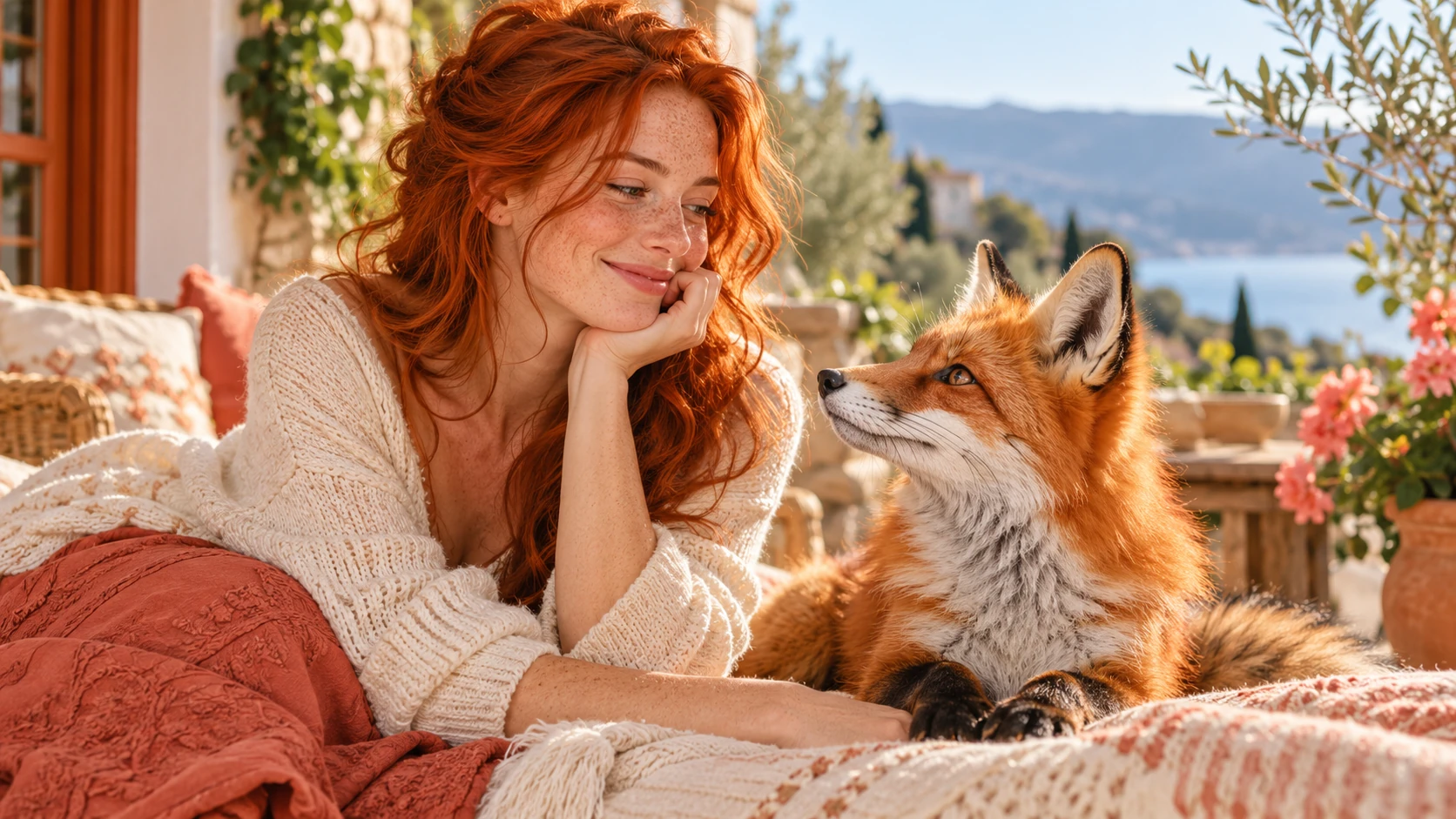
Use the comparison image to judge what actually carried over. The tilt of the head, direction of the eyes and overall framing can connect two very different faces. Inspect the ears, jaw and neck so the animal's anatomy feels coherent rather than assembled from unrelated parts. For a lifestyle scene with a person and an animal together, describe both subjects explicitly; that is a different composition from turning the person into the animal. Keep the selected source and finished picture side by side. If the species reads clearly but the expression is wrong, revise only the expression and head angle before changing the whole setting.
Photo to animal questions
Does the tool predict what animal someone resembles?
No. It creates an animal-inspired portrait from your photo and prompt. It does not make biological predictions or species judgments about a person. Treat the output as a creative illustration, not an assessment of anyone's appearance or character.
What kind of photo works best?
One clear subject with a visible face, readable pose, and reasonably even lighting. Avoid group shots, heavy blur, and profiles that hide the expression. A simple background helps the model treat the pose and framing as the important cues to preserve.
How specific should the species prompt be?
Name the animal clearly, then add only the details that matter to you, such as expression or head angle. Overloading the prompt with many competing traits can dilute the result. Keep the description focused, then revise one element at a time if needed.
Will the output keep every feature of my photo?
Not guaranteed. The process aims to preserve recognizable pose, expression, or visual cues where possible, but results vary with the photo and prompt. Some features carry over well; others change. Compare outputs in History and judge which version best meets your intent.
How do credits and accounts work?
You need an account to run generation jobs. A live credit quote is displayed before you confirm, so you see the cost for that job up front.
Create your first portrait
Upload one clear photo, describe your species and pose in the prompt, then check the live credit quote before you start.
Create a photo to animal portraitContinue with a related creative guide
heydots.app · Updated
See update history
- — Added editable example prompts and separate drafts for text and reference modes, with an action to restore the example.
- — Page content published. Updated page copy and content. Updated page images or videos. Updated page generator or navigation settings.