
Space Bunny Alpha: From Visual Input to an Image Brief
Space Bunny Alpha returns text from visual input. Learn how to turn a bounded critique into an image brief without confusing analysis with image generation.
What's new on this page
- — Page published.
Watch the illustrated guide
Original illustrated explanation with synthesized English narration and English captions. No generation test or original performance footage.
English transcript
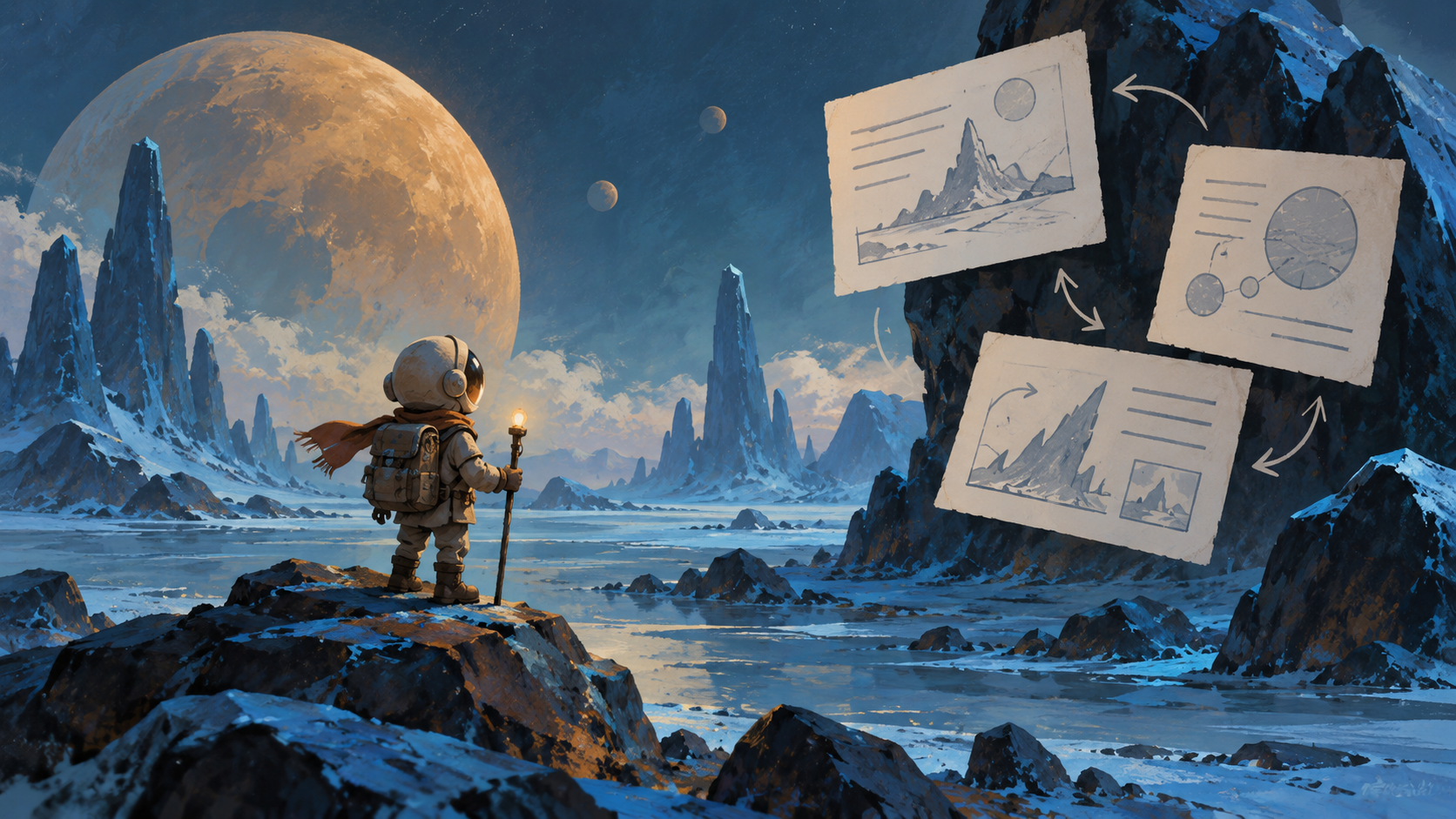
Space Bunny Alpha can accept visual input and return text. Describing an image is different from producing a finished image. It is not claimed as integrated into Heydots. Ask which visible detail competes with the main subject. Separate observable facts from creative suggestions and check the answer against the image. In this fictional explorer scene, a possible revision is to reduce the moon brightness while preserving the character, terrain, and palette. Use the image mode actually supported in Heydots. Keep source, critique, brief, and output. This is an illustrated editorial exercise, not a model test.
Space Bunny Alpha accepts visual input and returns text, according to its OpenRouter listing. That distinction matters to image creators: asking a model to discuss a picture is different from asking it to generate a finished image. Heydots is a separate image-creation service, and this guide does not claim that Space Bunny Alpha is available inside it.
This article develops a text-to-image planning exercise. It is an editorial analysis of the input/output boundary, not a hands-on test of Space Bunny Alpha or a performance comparison with Grok Imagine.
What Space Bunny Alpha's visual input means
OpenRouter describes Space Bunny Alpha as an anonymous preview model with adjustable reasoning and a one-million-token context. The listing describes text output, including when the input is an image or video. Provider identity is undisclosed; do not infer who made it from a nickname or an unverified benchmark post.
Availability, access terms, and limits can change during a preview. Check the current listing before planning a workflow around it. A long context window does not prove that a particular visual judgment is correct or that an image-generation feature exists.
Use text analysis to sharpen a visual question
When reviewing your own image, ask a bounded question. “Make this better” invites broad suggestions. “Which object draws attention away from the main character?” asks for a specific observation you can compare with the picture.
Use a picture you are permitted to share. Read the selected provider's current data terms before sending sensitive material. If you cannot upload it, describe the layout in text; that response should be treated as analysis of your description rather than an inspection of the actual image.
An illustrative review request is:
Review this poster concept. Identify the main subject, the strongest contrast, and one detail that competes with the subject. Separate observations visible in the image from suggestions. Propose one revision that keeps the character, setting, and color palette unchanged.
This request has not been run on Space Bunny Alpha. Its purpose is to define an accountable review task, not to demonstrate model capability.
Translate a suggestion into one image edit
Imagine a poster with a small explorer in the foreground and an overly bright moon behind them. A text review might suggest reducing the moon's prominence. That suggestion is a creative judgment until you inspect a revised image.
An edit brief could say:
Reduce the moon's brightness and apparent size. Preserve the explorer's identity, pose, clothing, foreground terrain, and overall blue-and-amber palette.
The original analytical contribution here is the handoff rule: keep the observation, the proposed change, and the preserved elements separate. This helps a creator detect when a new output improves one problem but unintentionally changes the rest of the scene.
Complete the image stage in Heydots
Open Heydots' image generator and use the input mode actually available for the selected model. A text suggestion cannot automatically edit a file; you still need a supported image workflow, suitable source material, and an output review.
For a new image, convert the idea into subject, setting, composition, lighting, and style. For an edit, state the precise change and the elements to preserve. Review the estimate before submitting. This article does not establish free access, exact identity retention, or a direct connection between the two services.
The Grok Imagine prompt collection provides another place to study how image briefs are expressed. Evaluate examples as examples, rather than guarantees that your request will match them.
Keep a short review trail
Save the source image, the text critique, the edit brief, and the revised image. Record whether the revision solved the original issue and whether it introduced another one. If the text model describes something absent from the picture, discard that observation instead of converting it into an edit.
Use the visual review stage to narrow a decision. Use the image stage to produce a candidate. The finished picture remains the evidence for whether the creative decision worked.