
Turn a Text Prompt into a Grok Imagine Image
Explore Grok Imagine Image Ideas with Heydots
Choose only the resolution and aspect ratio shown for the selected model. Check framing, fine details and any text in the completed image. A larger output size does not guarantee a more accurate result.
Verified prompt
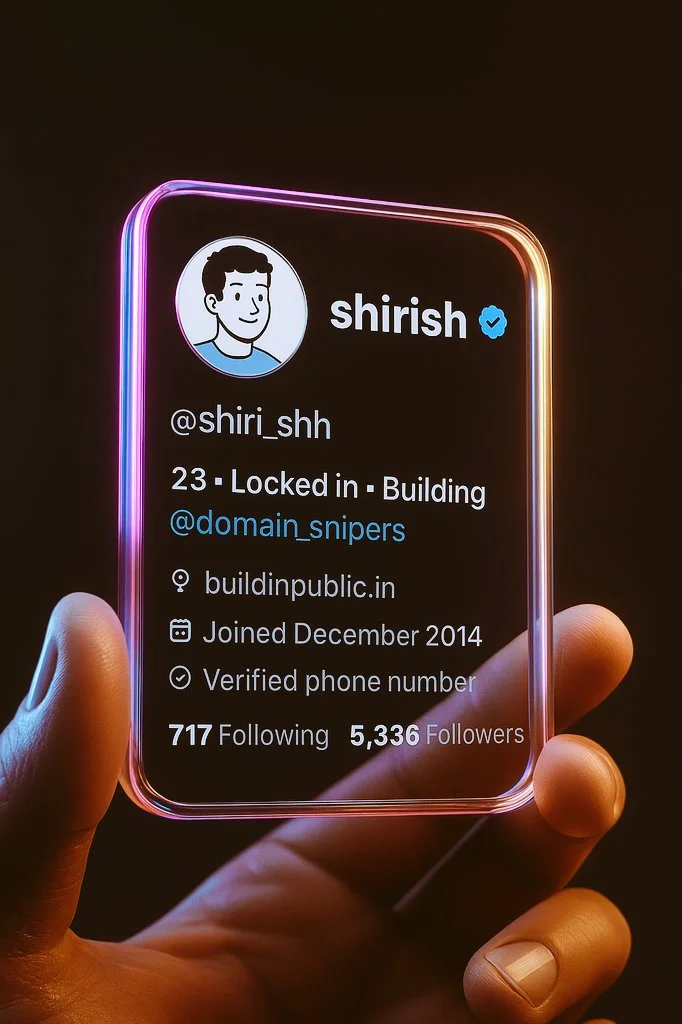
Step 1: Take a screenshot of your Twitter profile. Step 2: Open ChatGPT Step 3: Paste your screenshot and this prompt below Create a hyper-realistic 3D render of a transparent twitter profile card, designed like a futuristic glass ID badge held gently between two fingers. The card should be rectangular with rounded corners, made of clear glossy glass or acrylic, with glowing neon edges in pink, purple, and orange gradient inspired by the twitter color palette. Display the following profile information on the card using modern, minimal sans-serif typography.
Step 1: Take a screenshot of your Twitter profile. Step 2: Open ChatGPT Step 3: Paste your screenshot and this prompt below Create a hyper-realistic 3D render of a transparent twitter profile card, designed like a futuristic glass ID badge held gently between two fingers. The card should be rectangular with rounded corners, made of clear glossy glass or acrylic, with glowing neon edges in pink, purple, and orange gradient inspired by the twitter color palette. Display the following profile information on the card using modern, minimal sans-serif typography.

Verified prompt
create image with 1: 1 ratio turn a vector [ type ] icon with the following json style { "object": "icon", "material": { "primary_surface": "smooth matted translucent metallic", "finish": "iridescent sheen", "color_profile": { "base_color": "deep blue", "secondary_tones": [ "black", "violet", "copper-orange highlights" ] }, "panel_lines": { "material": "metallic copper", "visual_treatment": "glowing edge with subtle bevel" }, }, "lighting": { "type": "studio", "key_light": { "position": "top-left", "effect": "smooth gradient highlight across the surface" }, "rim_light": { "position": "right side", "effect": "sharp metallic edge glow" }, "reflections": { "character": "diffused but iridescent, hinting at a highly polished or lacquered surface" }, "shadows": "soft edge, minimal ground contact due to floating presentation" }, "background": { "color": "#FFF", "style": "solid matte", }, "composition": { "camera_angle": "centered, eye-level", "depth_of_field": "none (sharp focus throughout)", "presentation": "floating, isolated subject" "angle": "isometric style" }, "visual_style": { "tone": "modern, high-impact", "inspiration": "sports branding meets futuristic product design", "aesthetic": "bold contrast, tech-luxury fusion" } }
create image with 1: 1 ratio turn a vector [ type ] icon with the following json style { "object": "icon", "material": { "primary_surface": "smooth matted translucent metallic", "finish": "iridescent sheen", "color_profile": { "base_color": "deep blue", "secondary_tones": [ "black", "violet", "copper-orange highlights" ] }, "panel_lines": { "material": "metallic copper", "visual_treatment": "glowing edge with subtle bevel" }, }, "lighting": { "type": "studio", "key_light": { "position": "top-left", "effect": "smooth gradient highlight across the surface" }, "rim_light": { "position": "right side", "effect": "sharp metallic edge glow" }, "reflections": { "character": "diffused but iridescent, hinting at a highly polished or lacquered surface" }, "shadows": "soft edge, minimal ground contact due to floating presentation" }, "background": { "color": "#FFF", "style": "solid matte", }, "composition": { "camera_angle": "centered, eye-level", "depth_of_field": "none (sharp focus throughout)", "presentation": "floating, isolated subject" "angle": "isometric style" }, "visual_style": { "tone": "modern, high-impact", "inspiration": "sports branding meets futuristic product design", "aesthetic": "bold contrast, tech-luxury fusion" } }
Verified prompt

Verified prompt
the uploaded product image exactly as it is — do not alter, redraw, or reinterpret any part of it. Follow the guidelines below to create a high-quality, cinematic product presentation: • Keep the product fully intact — all text, labels, proportions, packaging, and colors must remain exactly the same. • Use natural or cinematic lighting to enhance the product’s appeal. • Place the product on a realistic surface that matches its category (e.g. wooden kitchen table for bread, bathroom shelf for skincare, desk for tech gadgets). • Add complementary props if appropriate (e.g. toast and coffee for bread, leaves and water droplets for skincare) — but do not let them touch or cover the product. • Use a softly blurred or ambient background (e.g. kitchen, morning window light, minimal interior). • Include soft shadows and subtle reflections for a grounded, photo-realistic effect. • Final result should feel premium, natural, and visually appealing — with 100% fidelity to the uploaded product image.
the uploaded product image exactly as it is — do not alter, redraw, or reinterpret any part of it. Follow the guidelines below to create a high-quality, cinematic product presentation: • Keep the product fully intact — all text, labels, proportions, packaging, and colors must remain exactly the same. • Use natural or cinematic lighting to enhance the product’s appeal. • Place the product on a realistic surface that matches its category (e.g. wooden kitchen table for bread, bathroom shelf for skincare, desk for tech gadgets). • Add complementary props if appropriate (e.g. toast and coffee for bread, leaves and water droplets for skincare) — but do not let them touch or cover the product. • Use a softly blurred or ambient background (e.g. kitchen, morning window light, minimal interior). • Include soft shadows and subtle reflections for a grounded, photo-realistic effect. • Final result should feel premium, natural, and visually appealing — with 100% fidelity to the uploaded product image.
Verified prompt
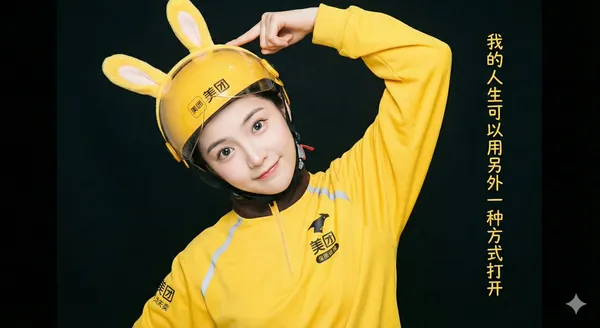
lf-body portrait shot in a bright photography studio. A beautiful East Asian girl with flawless, porcelain-doll-like skin and sparkling large eyes playfully tilts her head, gently touching the yellow rabbit ears on her helmet. She is wearing a full set of yellow delivery uniform with the Meituan logo. Soft, even commercial studio lighting is used to create a fresh and vibrant atmosphere, with a dark background to highlight the subject. On the far right of the image, a column of text reads, "My life can be opened in another way," in a font that matches the style of the photo.
lf-body portrait shot in a bright photography studio. A beautiful East Asian girl with flawless, porcelain-doll-like skin and sparkling large eyes playfully tilts her head, gently touching the yellow rabbit ears on her helmet. She is wearing a full set of yellow delivery uniform with the Meituan logo. Soft, even commercial studio lighting is used to create a fresh and vibrant atmosphere, with a dark background to highlight the subject. On the far right of the image, a column of text reads, "My life can be opened in another way," in a font that matches the style of the photo.
Verified prompt
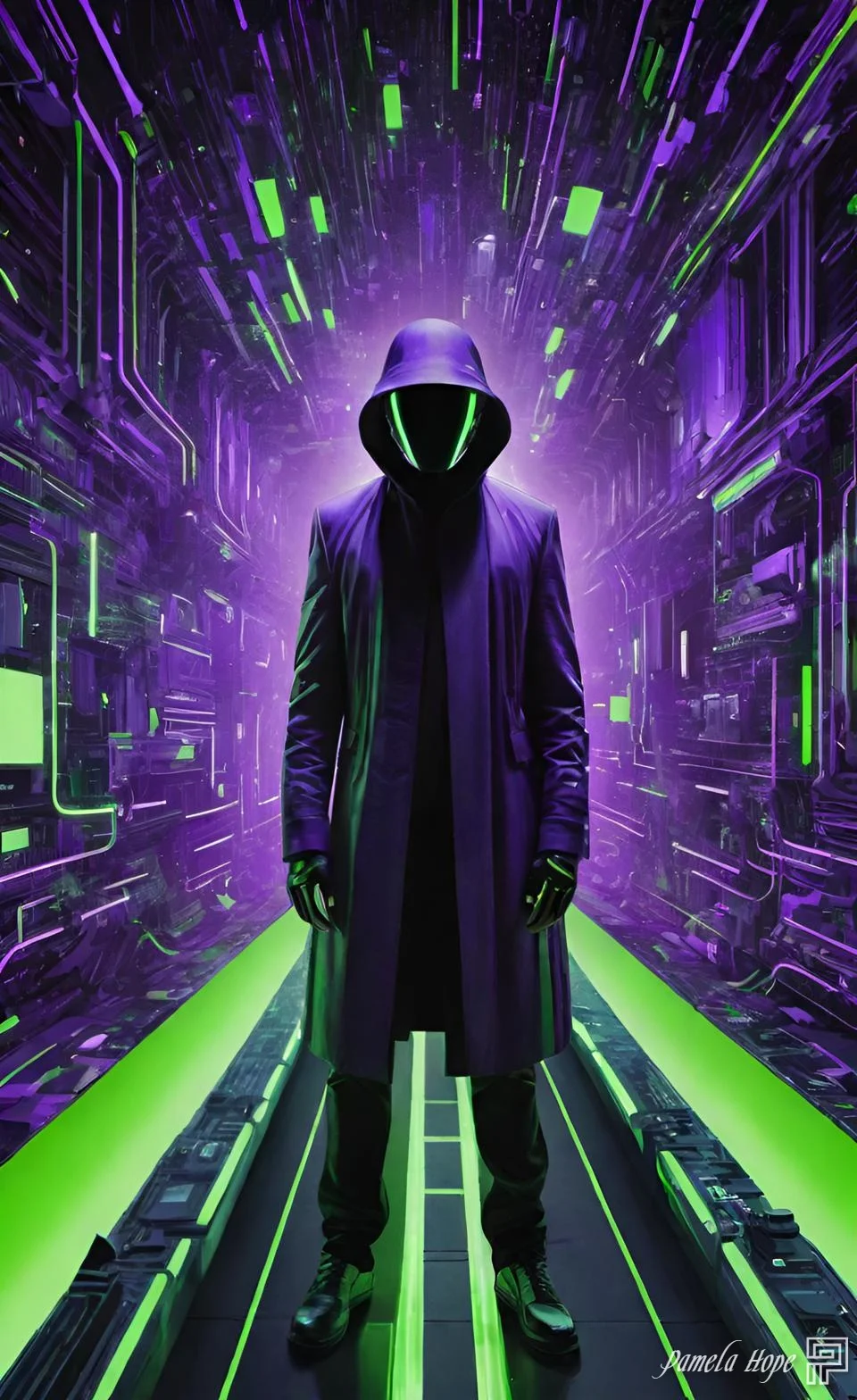
[SUBJECT] reinterpreted through Cyber Matrix Dreamscapes, where cascading streams of digital code form the immersive backdrop. Imbue the scene with radical neon [COLOR1] and luminous [COLOR2] accents to evoke a futuristic reality where art converges with algorithm
[SUBJECT] reinterpreted through Cyber Matrix Dreamscapes, where cascading streams of digital code form the immersive backdrop. Imbue the scene with radical neon [COLOR1] and luminous [COLOR2] accents to evoke a futuristic reality where art converges with algorithm
Verified prompt
Verified prompt
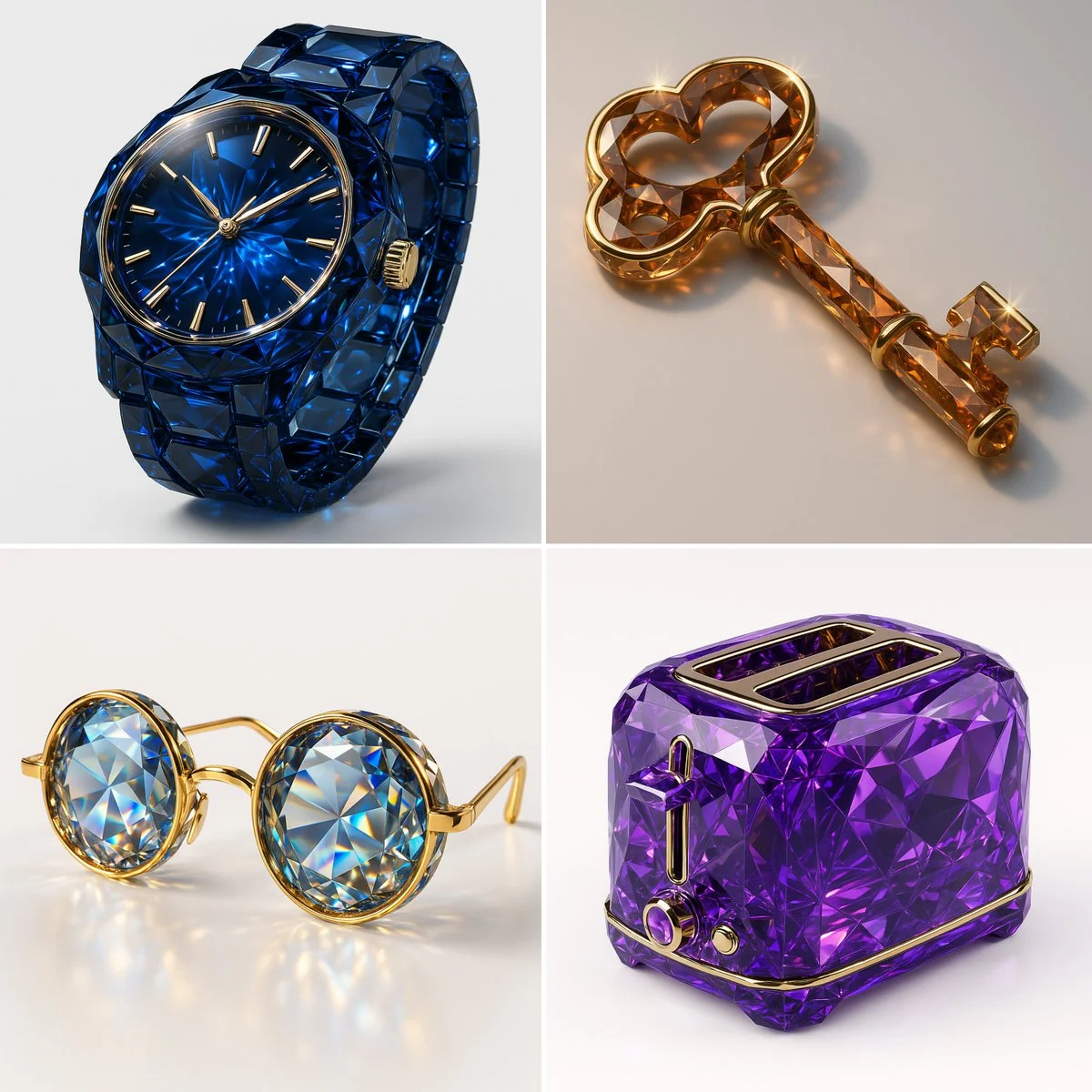
Apply the parameters of the JSON provided to [insert image] { "name": "Gemstone Render", "object": { "type": "auto", "detected_color": "auto", "form": "realistic, natural form preserved", "material": "crystal or faceted gemstone glass", "surface": "precision-cut facets, sharp reflections", "transparency": "high clarity with light refraction", "internal_features": "color depth, internal shimmer, and light dispersion" }, "color_and_light": { "primary_color": "{detected_color}", "highlight_effects": "specular highlights, gemstone brilliance, caustics", "lighting_setup": "studio lighting with white or soft background", "metallic_accents": { "enabled": true, "material": "gold or chrome", "application": "rim, stem, or edge detailing" } }, "style": { "artistic_style": [ "photorealistic 3D render", "Gemstone Render Style", "luxury object visualization" ], "design_language": [ "faceted precision modeling", "jewelry-like rendering", "optical depth and brilliance" ] }, "technical_details": { "render_engine": [ "Blender with Cycles", "Cinema 4D + Redshift/Octane" ], "rendering_techniques": [ "physically-based rendering (PBR)", "ray tracing", "global illumination" ], "resolution": "ultra high-res (4K–8K)", "post_processing": [ "subtle glow", "enhanced reflections", "color-preserving contrast boost" ] }, "prompt_template": "A 3D-rendered image of a {object} made of {detected_color} crystal, with intricate gemstone-like facets. It sparkles with internal reflections and sits on a clean studio background, blending realism with luxury design." }
Apply the parameters of the JSON provided to [insert image] { "name": "Gemstone Render", "object": { "type": "auto", "detected_color": "auto", "form": "realistic, natural form preserved", "material": "crystal or faceted gemstone glass", "surface": "precision-cut facets, sharp reflections", "transparency": "high clarity with light refraction", "internal_features": "color depth, internal shimmer, and light dispersion" }, "color_and_light": { "primary_color": "{detected_color}", "highlight_effects": "specular highlights, gemstone brilliance, caustics", "lighting_setup": "studio lighting with white or soft background", "metallic_accents": { "enabled": true, "material": "gold or chrome", "application": "rim, stem, or edge detailing" } }, "style": { "artistic_style": [ "photorealistic 3D render", "Gemstone Render Style", "luxury object visualization" ], "design_language": [ "faceted precision modeling", "jewelry-like rendering", "optical depth and brilliance" ] }, "technical_details": { "render_engine": [ "Blender with Cycles", "Cinema 4D + Redshift/Octane" ], "rendering_techniques": [ "physically-based rendering (PBR)", "ray tracing", "global illumination" ], "resolution": "ultra high-res (4K–8K)", "post_processing": [ "subtle glow", "enhanced reflections", "color-preserving contrast boost" ] }, "prompt_template": "A 3D-rendered image of a {object} made of {detected_color} crystal, with intricate gemstone-like facets. It sparkles with internal reflections and sits on a clean studio background, blending realism with luxury design." }
Verified prompt
Verified prompt
Verified prompt
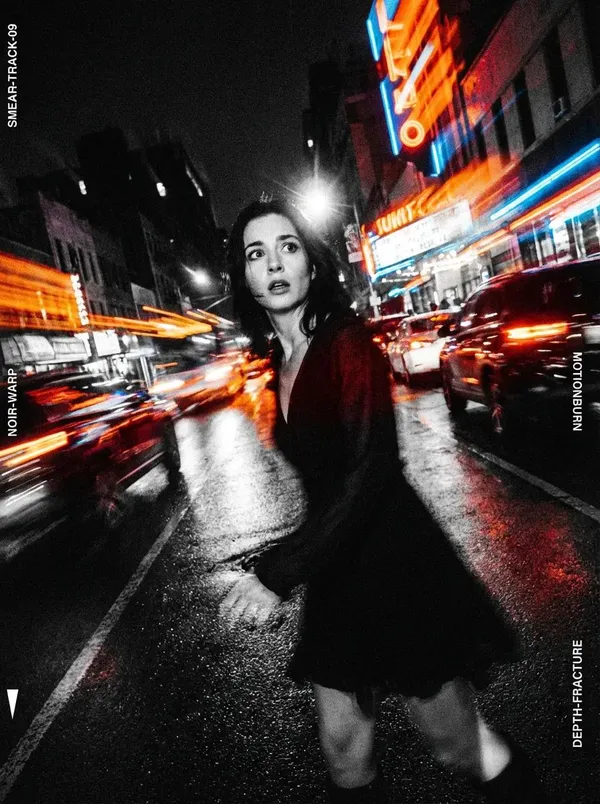
sual explosion in the middle of a fast-moving street. Frozen faces, sweeping movements, and a palpable "noir" atmosphere. Everything is planned, yet the results are always wild and raw.
sual explosion in the middle of a fast-moving street. Frozen faces, sweeping movements, and a palpable "noir" atmosphere. Everything is planned, yet the results are always wild and raw.
Verified prompt
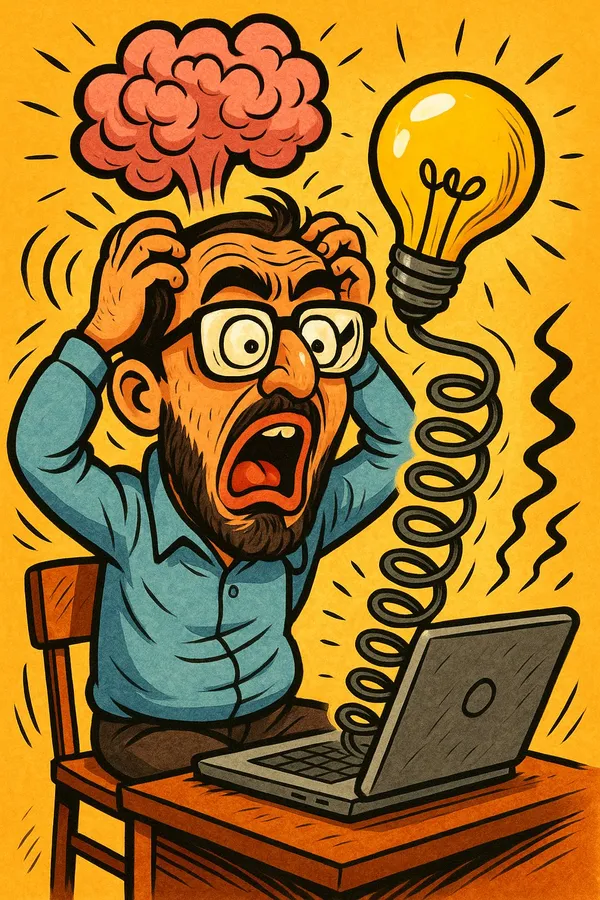
d on your understanding of my personality and past interactions, create a humorous and satirical image that teases me in a playful way. The image must have comedic features, using exaggerated expressions or surreal visual metaphors. Artistic style: cartoon or caricature with high contrast and expressive details. The goal is to amuse, not insult. Ensure the satire is clever and mindful.
d on your understanding of my personality and past interactions, create a humorous and satirical image that teases me in a playful way. The image must have comedic features, using exaggerated expressions or surreal visual metaphors. Artistic style: cartoon or caricature with high contrast and expressive details. The goal is to amuse, not insult. Ensure the satire is clever and mindful.
Explore Image Workflows
Explore the Grok Imagine workflow and compare it with the related image pages. The generator is the source of truth for current model access and settings. Use the prompt library to study published results and the model that created them.
Unleash Creativity with the Grok Imagine
Explore the Grok Imagine workflow and compare it with the related image pages. The generator is the source of truth for current model access and settings. Use the prompt library to study published results and the model that created them.
Allow time to inspect each image result and refine your brief. Processing time varies by model, request and service load. Change one direction at a time so that you can judge which edit improves the result.
Explore Grok Imagine
From Prompt to Finished Image: The Grok Imagine Workflow
Start your Grok Imagine image brief with a source image you have permission to use. Name the area to change and the colors, proportions or objects to preserve. Reference count and editing support depend on the selected model.
Enter prompt or upload reference
Start your Grok Imagine image brief with a source image you have permission to use. Name the area to change and the colors, proportions or objects to preserve. Reference count and editing support depend on the selected model.
Choose Settings and Generate
Allow time to inspect each image result and refine your brief. Processing time varies by model, request and service load. Change one direction at a time so that you can judge which edit improves the result.
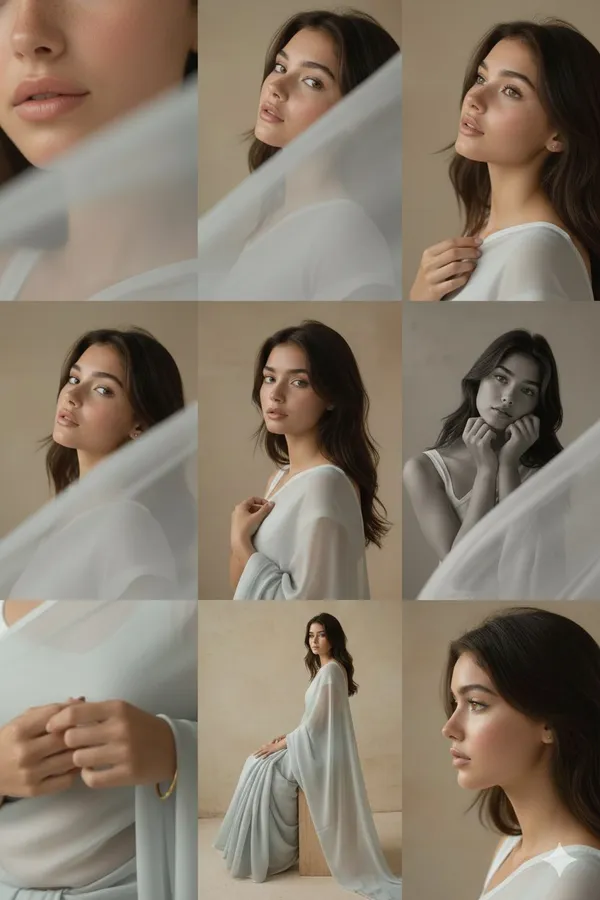
Review and Download Completed Results
When a request completes, inspect the image in your assets and download the result you want to keep. Review the composition and any unintended details before sharing it with your team or publishing it.
Create Your Grok Imagine Image
Write your Grok Imagine image brief around a subject, composition, lighting and intended style. Add a material or texture when it matters. For edits, state one precise change and explain which parts of the source should remain intact.
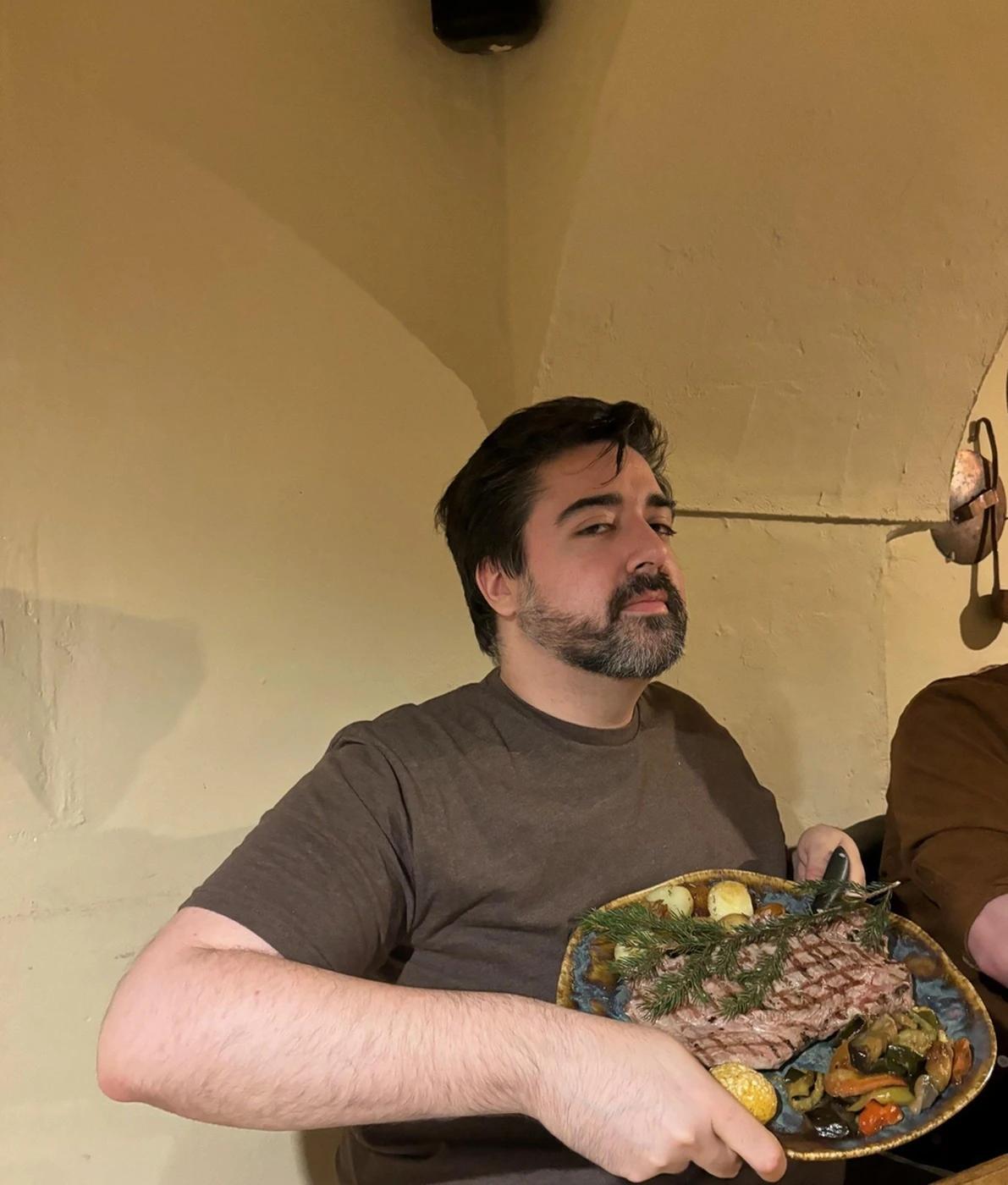
Text-to-image creation
Write your Grok Imagine image brief around a subject, composition, lighting and intended style. Add a material or texture when it matters. For edits, state one precise change and explain which parts of the source should remain intact.
- Use the grok ai image generatorWrite your Grok Imagine image brief around a subject, composition, lighting and intended style. Add a material or texture when it matters. For edits, state one precise change and explain which parts of the source should remain intact.
- The grok imagineWrite your Grok Imagine image brief around a subject, composition, lighting and intended style. Add a material or texture when it matters. For edits, state one precise change and explain which parts of the source should remain intact.grok text to image generator.
- Choose only the resolution and aspect ratio shown for the selected model. Check framing, fine details and any text in the completed image. A larger output size does not guarantee a more accurate result.grok ai photo generator.
- Rely on this grok image prompt generatorExplore the Grok Imagine workflow and compare it with the related image pages. The generator is the source of truth for current model access and settings. Use the prompt library to study published results and the model that created them.
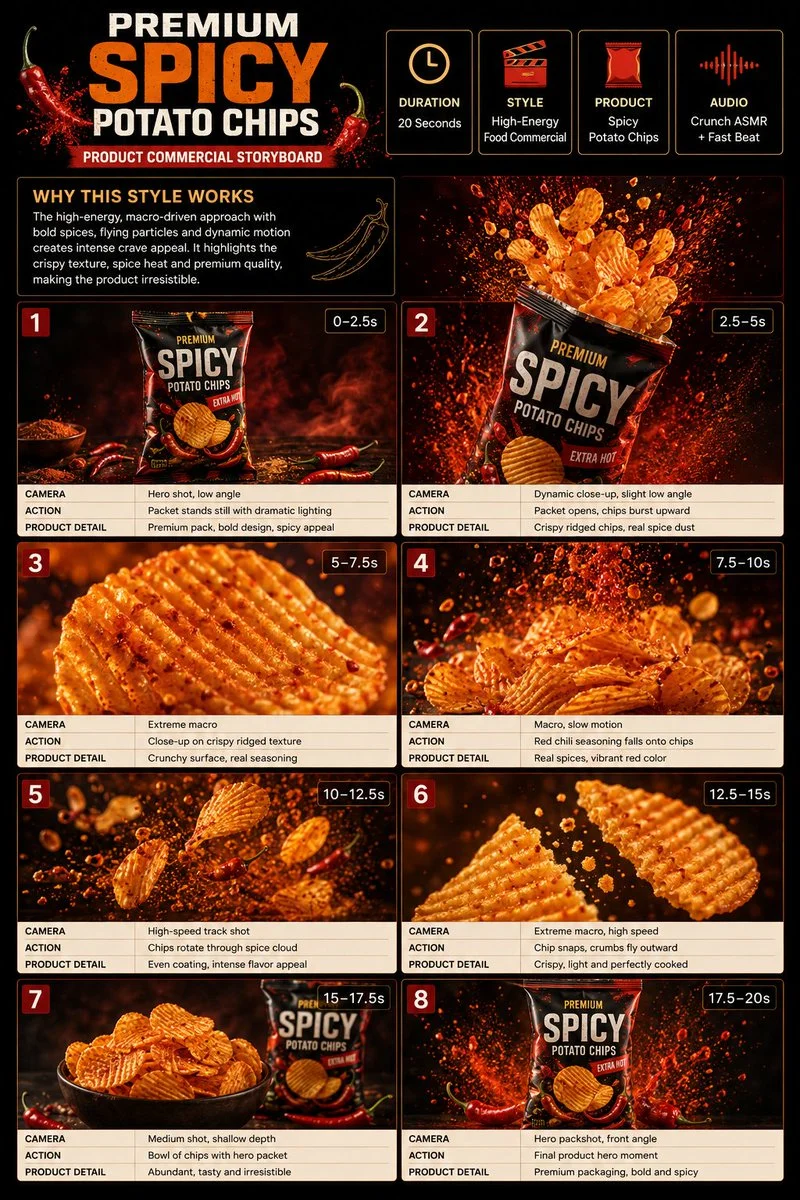
Write Precise Editing and Style Directions
Explore the Grok Imagine workflow and compare it with the related image pages. The generator is the source of truth for current model access and settings. Use the prompt library to study published results and the model that created them.
- Start your Grok Imagine image brief with a source image you have permission to use. Name the area to change and the colors, proportions or objects to preserve. Reference count and editing support depend on the selected model.grok ai image generatorDescribe the result you need, select an available Grok Imagine model and submit your request from the generator. Review completed image results in your assets, refine the prompt when needed, and download the version that fits your project.
- The grok imagine platform acts as a sophisticated grok ai image editorFor a Grok Imagine product concept, specify the product shape, material, key detail and setting. Keep logos and claims accurate, allow room for your own typography, and review the result before using it in an advertisement.
- Use the grok image editing aiList the details that matter in your Grok Imagine image brief: identity, shape, colors, clothing and background. Use supported references where appropriate and compare every result; exact consistency is not guaranteed.
- This grok ai photo generatorDescribe the result you need, select an available Grok Imagine model and submit your request from the generator. Review completed image results in your assets, refine the prompt when needed, and download the version that fits your project.
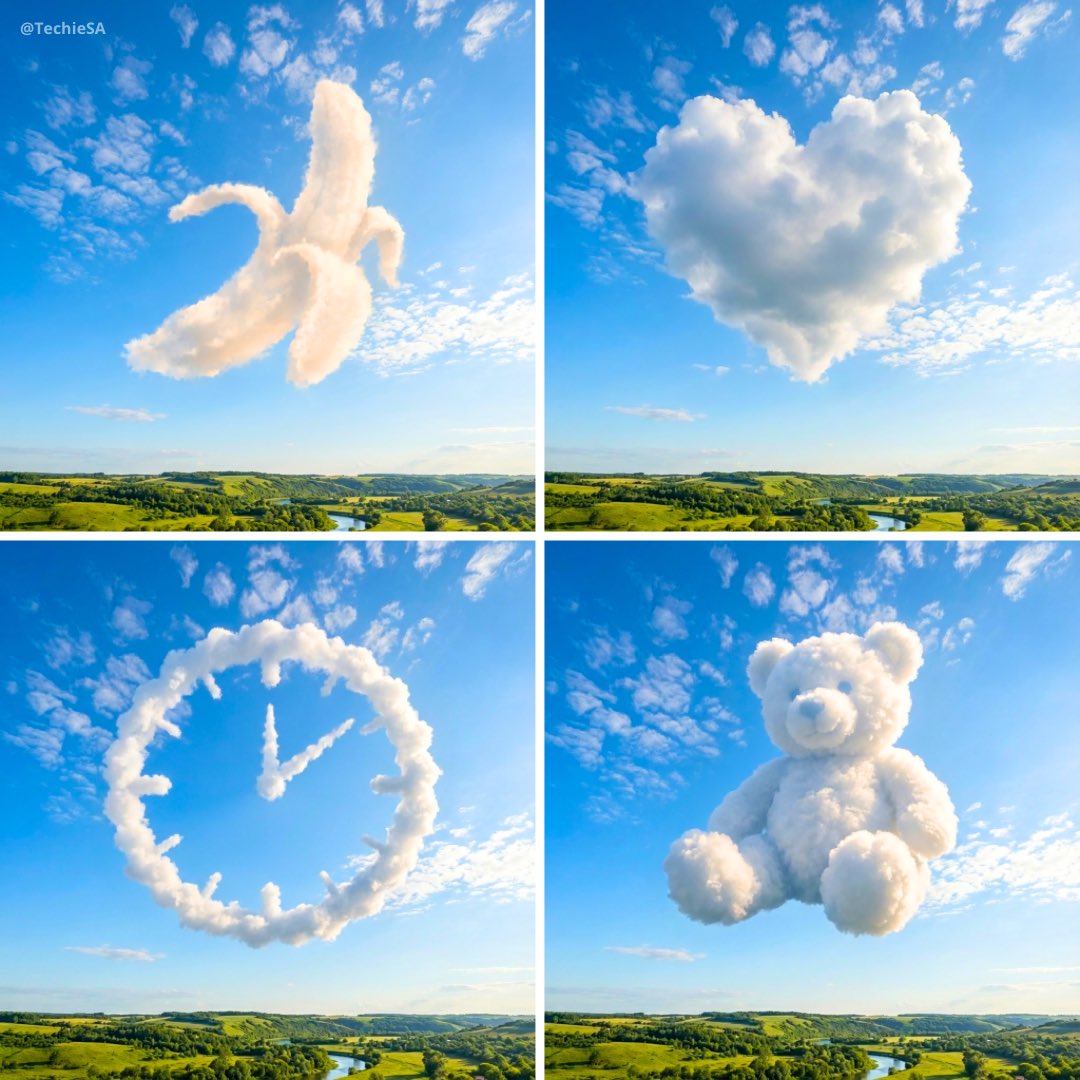
Use References to Explain the Intended Result
Start your Grok Imagine image brief with a source image you have permission to use. Name the area to change and the colors, proportions or objects to preserve. Reference count and editing support depend on the selected model.
- The grok ai image generatorList the details that matter in your Grok Imagine image brief: identity, shape, colors, clothing and background. Use supported references where appropriate and compare every result; exact consistency is not guaranteed.
- With grok imagine, you are not leaving things to chance; the grok reference image generator minimizes randomness.
- Ensure your brand consistency by letting the grok ai photo generator match the exact aesthetic of your provided references.
- creative for maintaining a cohesive look when using the Grok Imagine for marketing visuals.
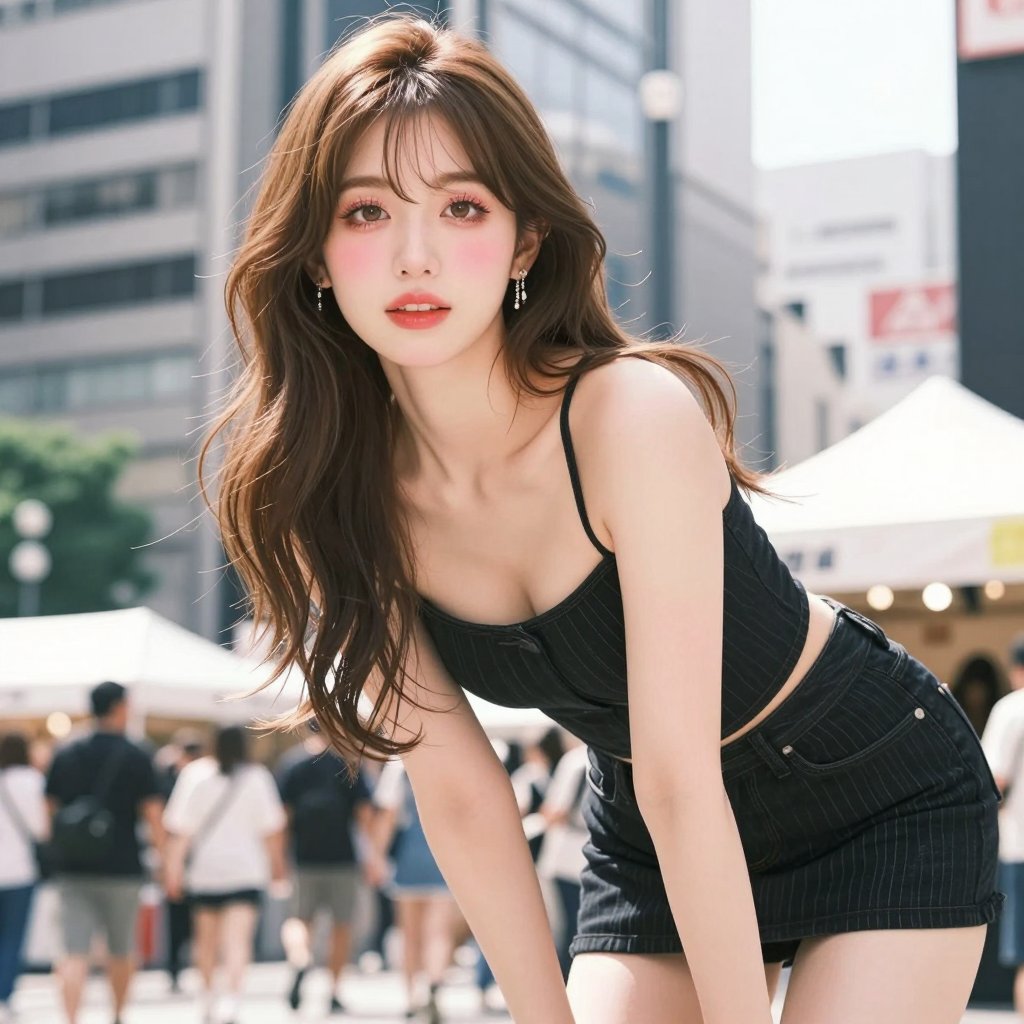
Explain Your Subject, Changes and References
Explore the Grok Imagine workflow and compare it with the related image pages. The generator is the source of truth for current model access and settings. Use the prompt library to study published results and the model that created them.
- The grok ai image generatorAllow time to inspect each image result and refine your brief. Processing time varies by model, request and service load. Change one direction at a time so that you can judge which edit improves the result.
- Use grok imagineFor a Grok Imagine product concept, specify the product shape, material, key detail and setting. Keep logos and claims accurate, allow room for your own typography, and review the result before using it in an advertisement.
- The grok ai photo generator provides you with a variety of options, making it the ideal Grok Imagine for social media.
- Describe the result you need, select an available Grok Imagine model and submit your request from the generator. Review completed image results in your assets, refine the prompt when needed, and download the version that fits your project.grok imagine ai image generator.
A Clearer Creative Brief for Grok Imagine
Allow time to inspect each image result and refine your brief. Processing time varies by model, request and service load. Change one direction at a time so that you can judge which edit improves the result.
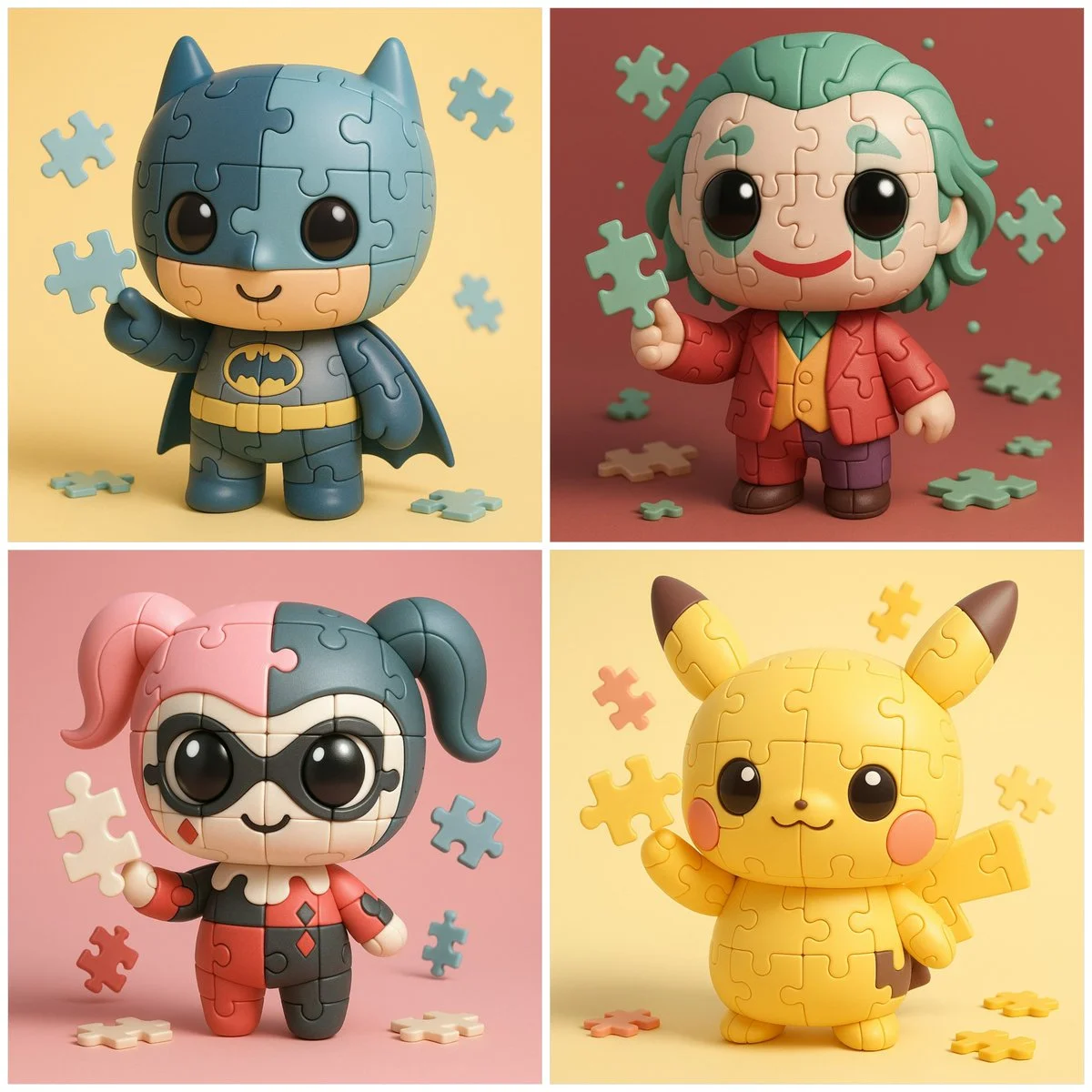
Skip Complex Software
Allow time to inspect each image result and refine your brief. Processing time varies by model, request and service load. Change one direction at a time so that you can judge which edit improves the result.
Turn Ideas into Visuals
Choose only the resolution and aspect ratio shown for the selected model. Check framing, fine details and any text in the completed image. A larger output size does not guarantee a more accurate result.

Check Details Across Every Result
Start your Grok Imagine image brief with a source image you have permission to use. Name the area to change and the colors, proportions or objects to preserve. Reference count and editing support depend on the selected model.
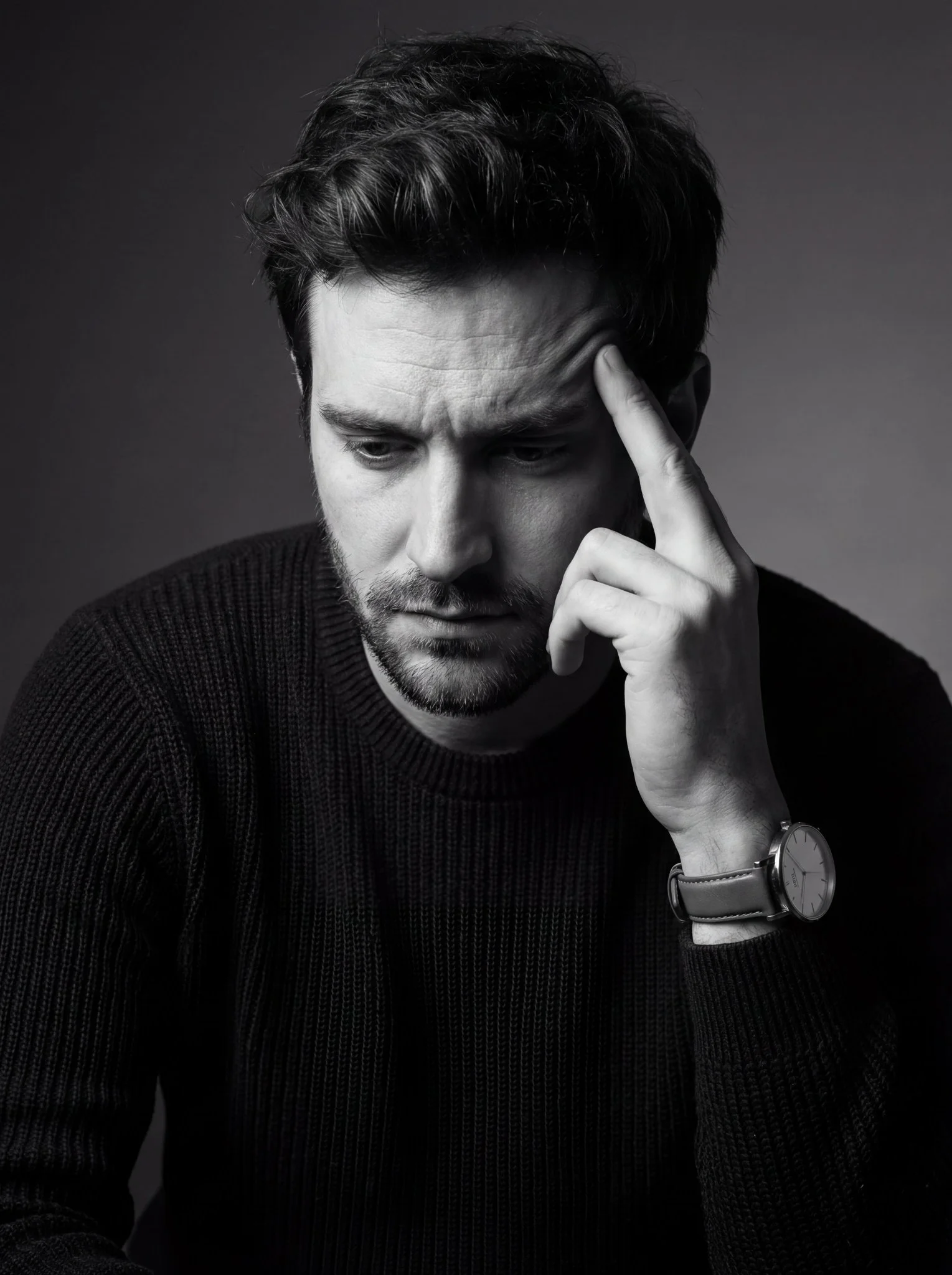
Built for Marketing & Social
For a Grok Imagine product concept, specify the product shape, material, key detail and setting. Keep logos and claims accurate, allow room for your own typography, and review the result before using it in an advertisement.
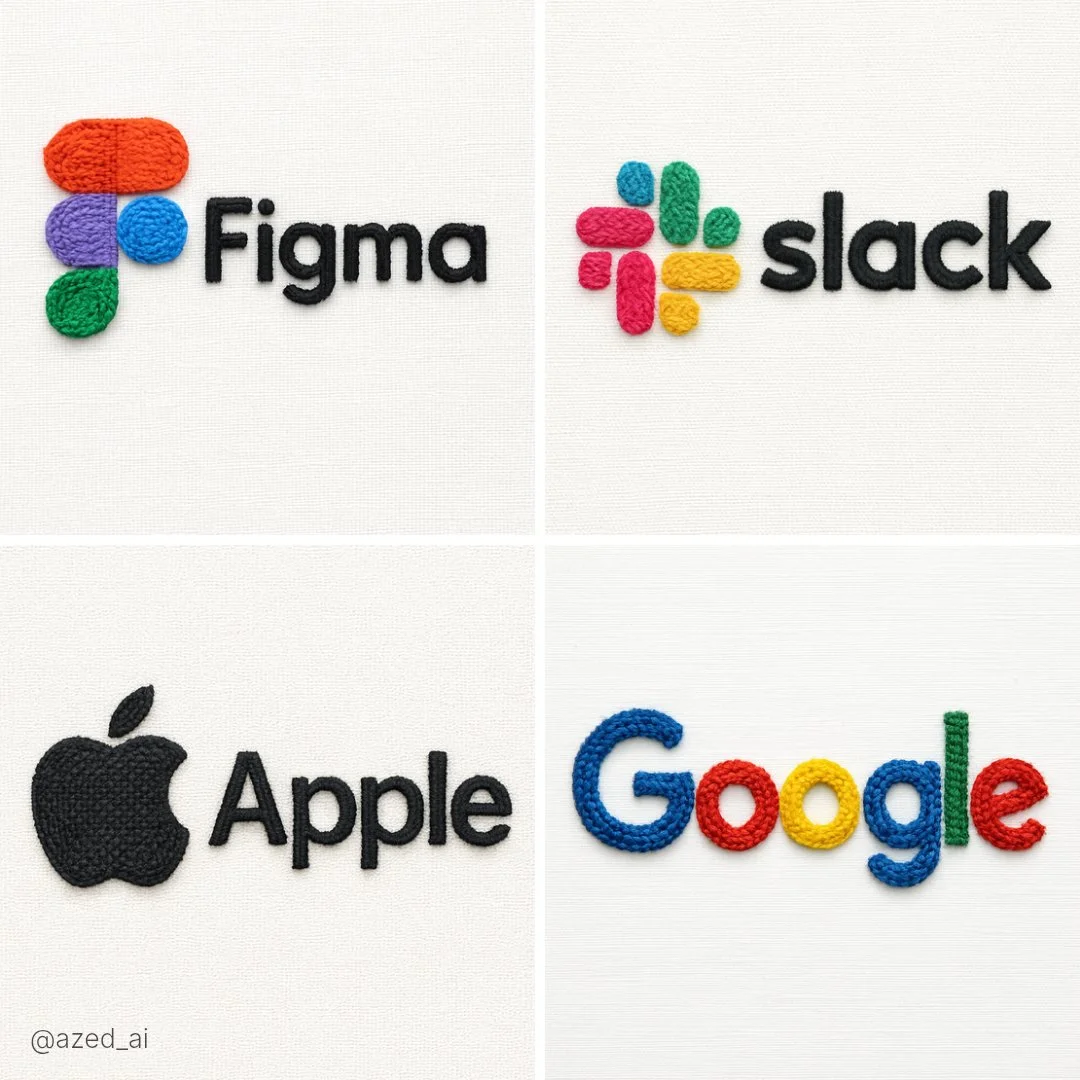
Easy Natural-Language Editing
Allow time to inspect each image result and refine your brief. Processing time varies by model, request and service load. Change one direction at a time so that you can judge which edit improves the result.
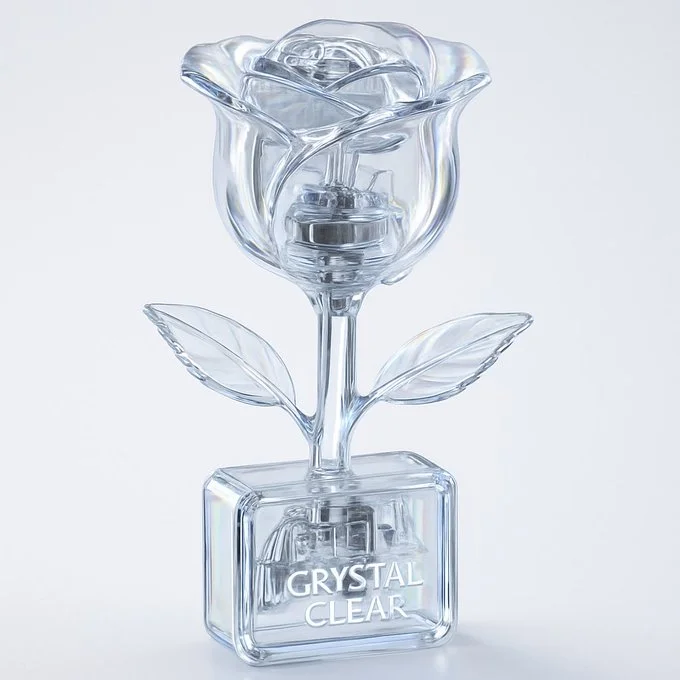
Rapid Visual Iteration
Allow time to inspect each image result and refine your brief. Processing time varies by model, request and service load. Change one direction at a time so that you can judge which edit improves the result.
Creative Notes for Your Grok Imagine Image Brief
Give the main subject one clear action. For a Grok Imagine concept, a precise brief is easier to assess than a list of competing effects.
Grok Imagine Image Workflow: Questions & Answers
Describe the result you need, select an available Grok Imagine model and submit your request from the generator. Review completed image results in your assets, refine the prompt when needed, and download the version that fits your project.
Heydots brings the Grok Imagine image workflow into one workspace: write your prompt, choose an available model, review the credit cost and generate. Completed results stay in your assets for review and download. The generator shows which models and inputs accept requests.
Describe the result you need, select an available Grok Imagine model and submit your request from the generator. Review completed image results in your assets, refine the prompt when needed, and download the version that fits your project.
Write your Grok Imagine image brief around a subject, composition, lighting and intended style. Add a material or texture when it matters. For edits, state one precise change and explain which parts of the source should remain intact.
Use only the input modes and controls offered by the selected model. Describe the intended image clearly and add supported references when useful. This page does not promise separate motion-brush, audio-upload, restoration or editing tools.
For a Grok Imagine product concept, specify the product shape, material, key detail and setting. Keep logos and claims accurate, allow room for your own typography, and review the result before using it in an advertisement.
Choose only the resolution and aspect ratio shown for the selected model. Check framing, fine details and any text in the completed image. A larger output size does not guarantee a more accurate result.
You can request a refund within 10 days of purchase if you have unused credits from that purchase and provide a clear reason, subject to our Refund Policy. If eligible, an unused purchase can be fully refunded; a partly used purchase is refunded in proportion to its remaining unused credits. Fully used purchases and free or promotional credits are not refundable.
Credit validity depends on the pack, subscription or promotion that issued them. Review the purchase terms and expiration dates in Settings > Credits. A renewal or new purchase does not extend older credits. Use credits before their stated expiration; do not assume unused subscription credits roll over indefinitely.
Credits charged for a task that is confirmed as failed due to a system error are returned automatically. A task that is still processing has not yet been confirmed as failed. Check its status and your credit history before submitting again. If a confirmed failure still shows an unresolved charge, email support@heydots.app with the task ID.
AI results can vary, so a completed result that differs from your expectations is not automatically treated as a technical failure. Eligible completed image tasks can be submitted for credit refund review using the refund option where available; approval is required. For a video or another issue, contact support@heydots.app with the task ID and details. A credit refund returns credits, not money to your payment method.
Email support@heydots.app. For billing, include your account email and order ID; for generation, include the task ID, issue description and relevant screenshots. If you purchased as a guest, keep the original browser data and payment receipt so we can help locate the purchase.
Explore Your Next Grok Imagine Image Idea
Allow time to inspect each image result and refine your brief. Processing time varies by model, request and service load. Change one direction at a time so that you can judge which edit improves the result.
heydots.app · Updated
See update history
- — Corrected the default model selection for the Grok image generator. Added editable example prompts and separate drafts for text and reference modes, with an action to restore the example.
- — Updated page copy and content.
- — Page content published.